
Getting Started with MATLAB
Preparing for Use
Before you use your camera, we recommend that you are aware of the following resources:
- Getting Started Manual for the camera—provides information on installing components and software needed to run the camera.
- Technical Reference for the camera—provides information on the camera’s specifications, features and operations, as well as imaging and acquisition controls.
- Firmware updates—ensure you are using the most up-to-date firmware for the camera to take advantage of improvements and fixes.
- Tech Insights—Subscribe to monthly email updates containing information on new knowledge base articles, new firmware and software releases, and Product Change Notices (PCN).
Installation and Configuration
Teledyne FLIR GigE and USB3 cameras are supported in MATLAB through the Image Acquisition Toolbox using the GenTL adapter. For more information, see https://www.mathworks.com/hardware-support/gentl.html
Spinnaker GenTL Producer is a software driver that implements the GenTL 1.5 standard (https://www.emva.org/). It allows users to enumerate, communicate and stream from Teledyne GigE Vision and USB3 Vision devices in a generic way independent from the underlying transport technology.
In order to use a Spinnaker GenTL producer, it needs to be properly registered and installed on the system. The Spinnaker Producer comes packaged with the full Spinnaker SDK installer version 2.x or later.
Download Spinnaker (you must be logged in to download software)
NOTE: A 32-bit GenTL consumer application requires a 32-bit GenTL producer and a 64-bit application requires a 64-bit producer library. The latest MATLAB is 64-bit, so make sure to download the 64-bit version of the Spinnaker SDK.
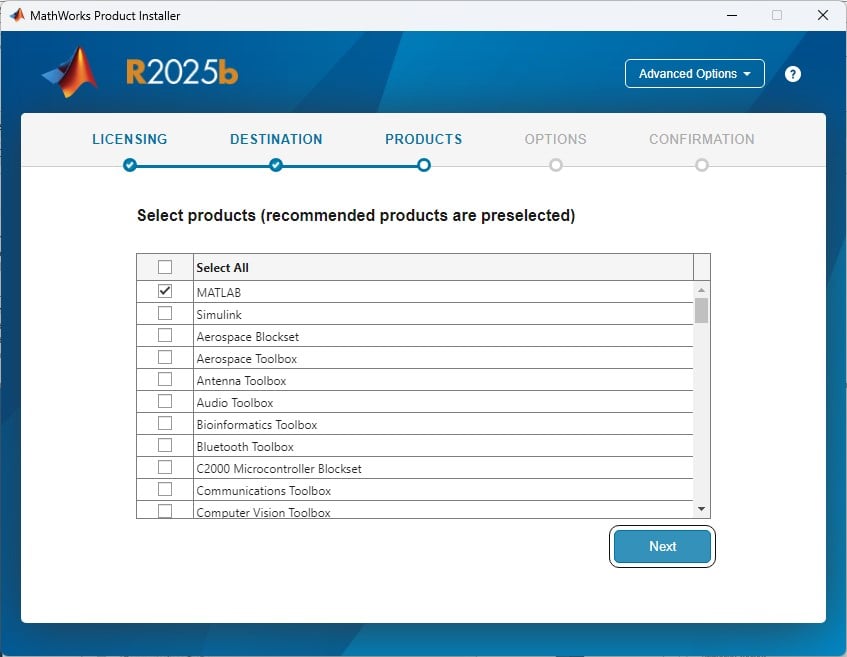
Step 1—Install MATLAB
MATLAB is available for download from the MathWorks website.
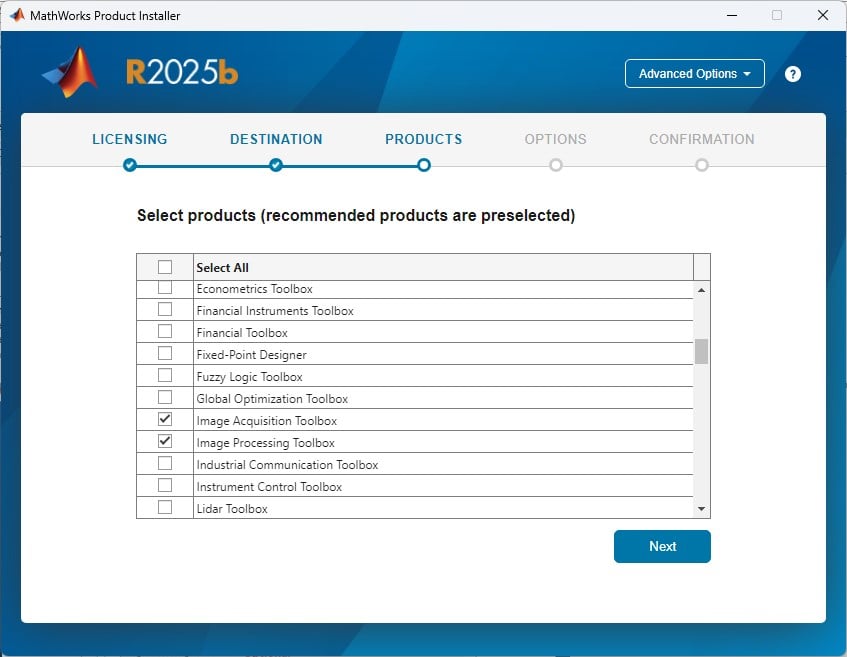
Under PRODUCTS, select MATLAB and Image Acquisition Toolbox (at a minimum).
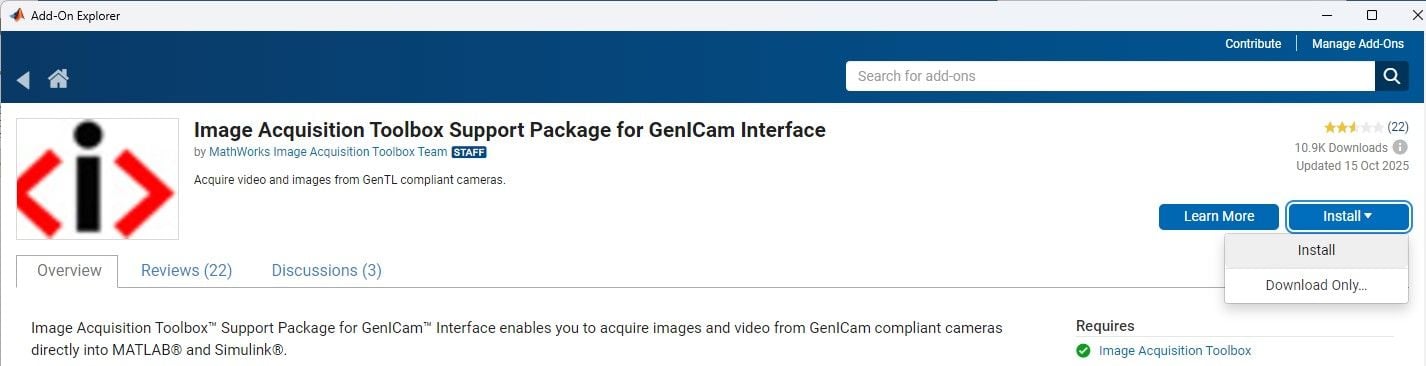
Step 2—Install GenICam Support Package
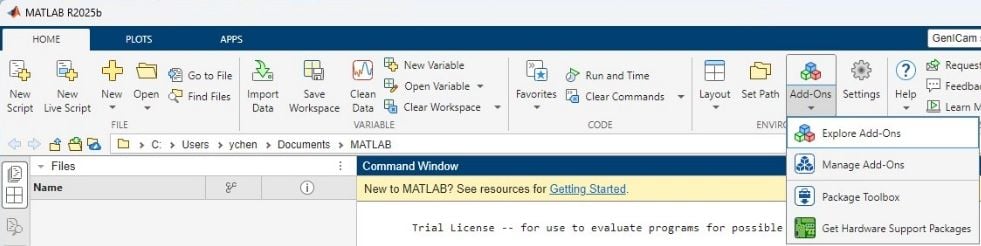
From the Home tab expand the Add-Ons drop-down and select Explore Add-Ons. Then search for GenICam.
Select Image Acquisition Toolbox Support Package for GenICam Interface.
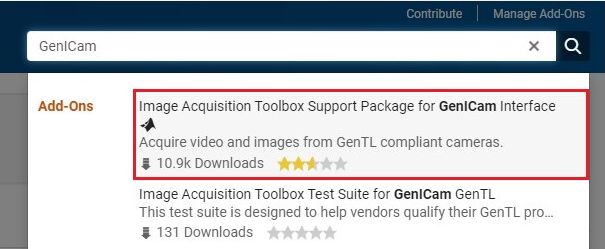
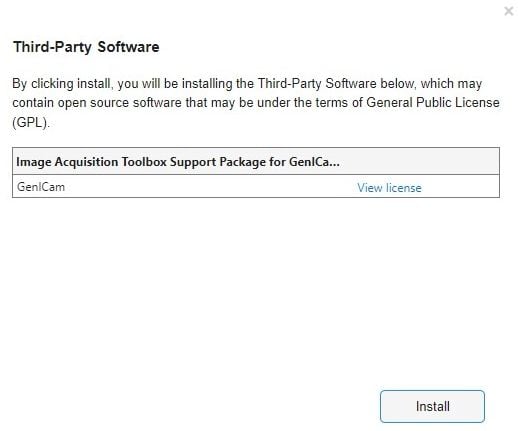
Click Install then click Install again.
Step 3—Start Acquisition in Image Acquisition Explorer
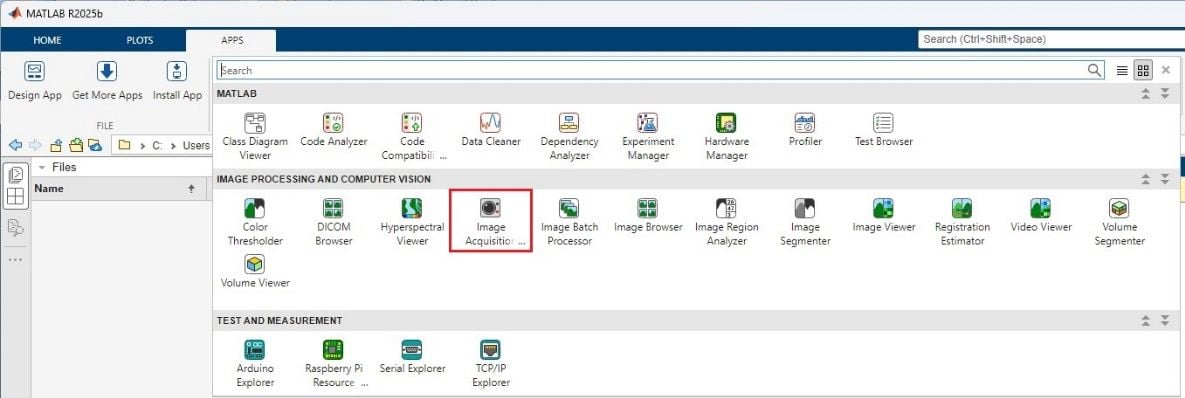
From the APPS tab expand the full list.
Under IMAGE PROCESSING AND COMPUTER VISION click Image Acquisition Explorer.
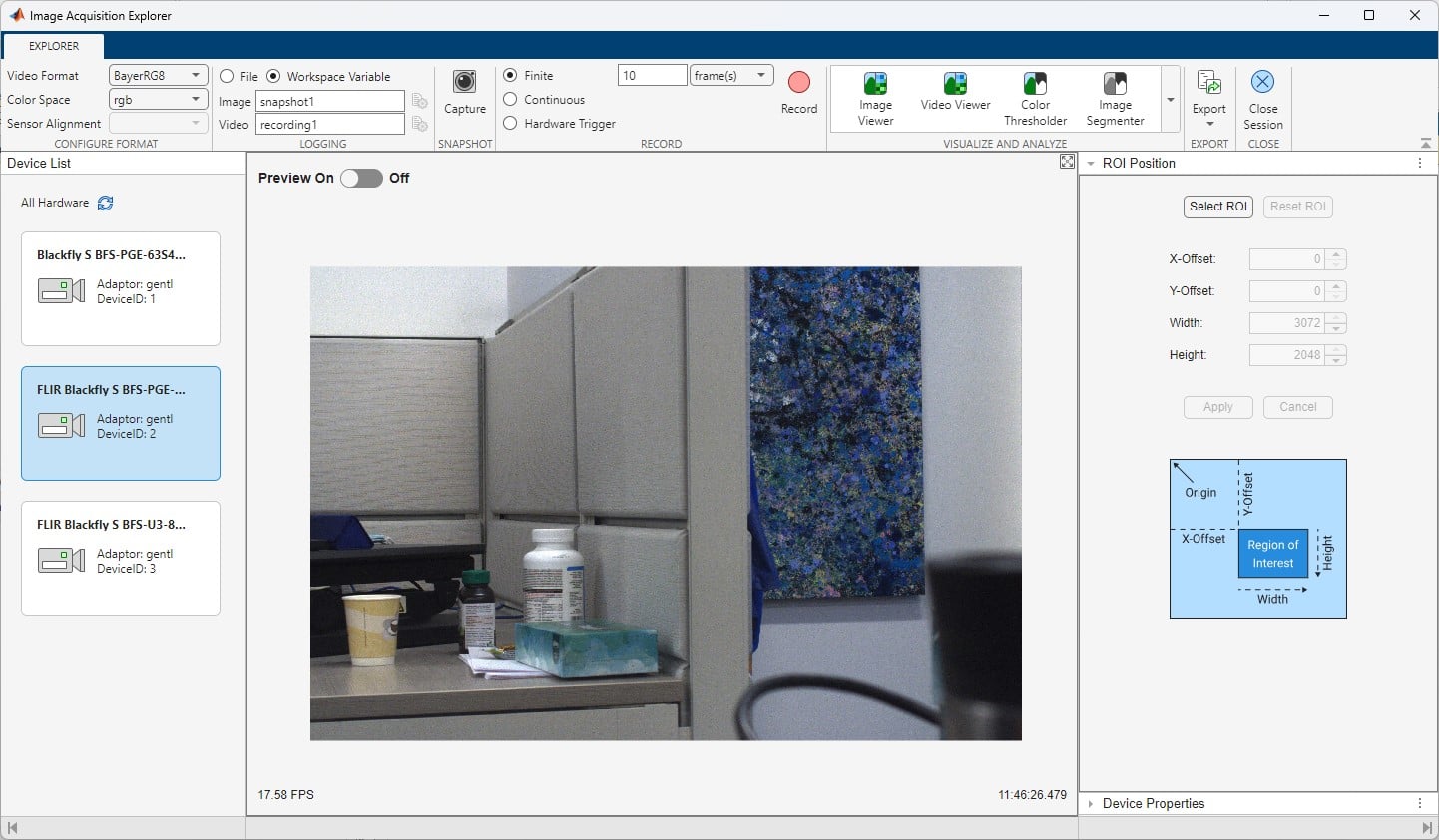
Your cameras show up in the Image Acquisition Explorer:
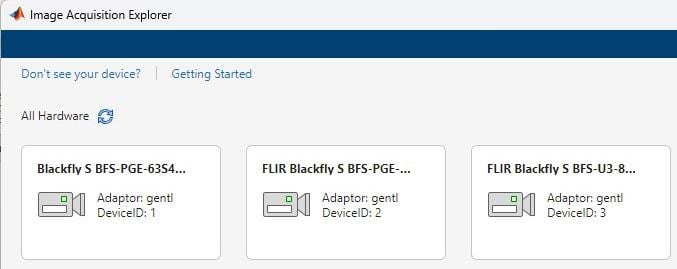
NOTE: If you see multiple GigE camera instances, this could be due to the number of filter drivers enabled for your NIC.
Click on your camera and start preview:
Troubleshooting Tips
The following suggestions may help you troubleshoot issues with your camera:
- Update the driver to the latest version.
- Update the firmware to the latest version.
- Update the software to the latest version.
- Perform a soft reboot and if still necessary a hard reboot of the PC.
- Disable then enable the driver.
- Power cycle the camera.
- Power the camera through GPIO, if wiring harness is available.
- Use a separate host controller instead of an integrated one, if available.
- Ensure the card is powered via the 4-pin hard drive connector, if applicable.
- Use a different cable or host controller or PC.
- Restore the default setting of the camera.
- Reset image acquisition objects in MATLAB with imaqreset command.